
Popout · Create on iPhone
From a photo to a chibi preview, then a 3D figurine
A chibi preview lets you judge the character’s style. Building the figurine is a separate cloud step that uses points and creates a model you can rotate. Check both stages before sharing.
Check the work at each stage
Choose the figurine workflow
Use a photo with the intended people or pet clearly visible. Check overlaps and framing. Read the photo-use notice and approve cloud processing before generating the preview.
Review the flat preview
Inspect the face, clothing, pet markings and which subjects were included. The preview is a generated image. It cannot prove what a back view of the model will look like. Reroll allowances and costs are shown in the App.
Confirm the model build
Read the point cost shown on the build button before confirming. The App creates the model in a separate step. You can return to the library while it finishes.
Rotate through the full model
Open the finished figurine and drag it around. Check the side and back, clothing colors and the separation of joined subjects. A convincing front view is only one angle.
Choose how to use it
Export a rotating video, or use AR placement in the App. A rotating video is a recording of the model; viewers cannot choose an arbitrary angle in that video.
One family example, three different artifacts



Keep the back view in your review
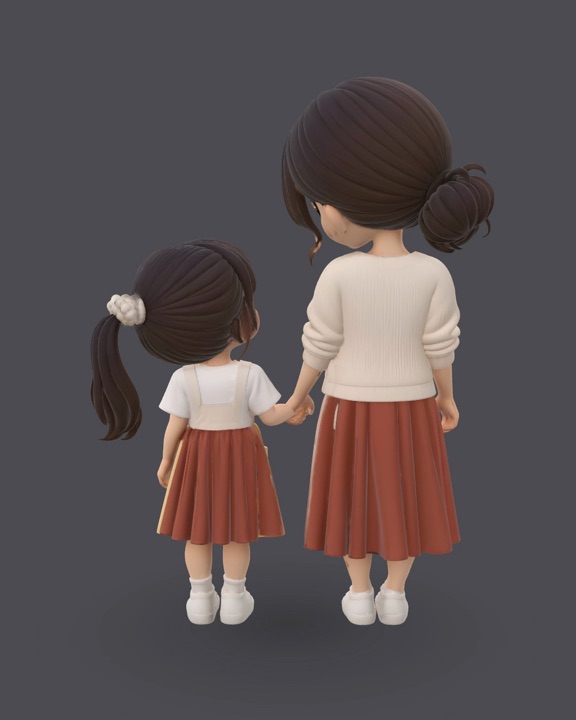
The original input did not photograph the hidden back surfaces. Generated surfaces can introduce color or shape inconsistencies. The recorded friends and couple models also showed clothing color drift. These examples do not establish a failure rate for other photos.
For a pet example, see the actual corgi turntable on the figurine feature page.
Confirm the current cost in the App
3D photo creation is free. Figurine generation uses points, with preview and reroll conditions shown in the App. Read the pricing explanation and the membership and points terms before confirming.
The output is a digital figurine. STL export, physical printing and manufactured delivery are not offered. This guide shows App model renders; it does not claim an AR camera capture has been verified.